
Step by step: exporting your library
The export tool only exists on the Goodreads website — the iOS and Android apps don't have it. On a phone, use a mobile browser (request the desktop site if the sidebar doesn't show).
- Sign in at goodreads.com and click My Books in the top navigation.
- In the left sidebar, scroll down to the Tools section and click Import and Export.
- At the top of that page, click the Export Library button.
- Goodreads generates the file in the background. When it's ready, a link appears below the button — labeled "Your export from [date]". Click it to download.
- You now have a file named goodreads_library_export.csv. That's your entire library: every shelf, rating, read date, and review.
Open it once in any spreadsheet app to sanity-check that rows look right before you delete anything or import elsewhere. If you're weighing whether to leave at all, our Leafed vs Goodreads comparison lays out the honest tradeoffs.
Five minutes of cleanup before you export
The export is a snapshot of your library as it stands, so anything wrong in Goodreads today is wrong in the file forever. A quick pre-flight pass pays for itself:
- Set missing read dates on books you finished recently — Date Read is the column that powers yearly stats everywhere you might import.
- Fix obviously wrong editions you've noticed but never bothered to correct (the audiobook edition standing in for the paperback you actually read). Edition determines the ISBN, page count, and cover that export.
- Rate the unrated — anything sitting at zero stars that you actually have an opinion about. Zero exports as "unrated," not as a rating.
- Prune duplicate rows if you've ever re-added a book on a different edition; duplicates import as duplicates.
None of this is required — the export works fine on a messy library — but cleanup is far easier in Goodreads' interface than in a CSV or after import.
What's inside the CSV
The export has one row per book and around twenty columns. The ones that matter for moving or backing up your history:
| Column | What it holds | Notes |
|---|---|---|
| Title / Author | The book and primary author | Additional Authors is a separate column |
| ISBN / ISBN13 | Edition identifiers | Wrapped in ="..." formatting; often empty for Kindle editions |
| My Rating | Your stars, 0–5 | 0 means unrated; Goodreads has no half stars |
| Average Rating | Community average at export time | A snapshot — goes stale immediately |
| Number of Pages / Year Published / Publisher | Edition metadata | Quality varies with the edition you shelved |
| Exclusive Shelf | read, currently-reading, or to-read | Your book's status — the most important column for imports |
| Bookshelves | All your custom shelves, comma-separated | "fantasy, favorites, book-club" in one cell |
| Date Read / Date Added | When you finished / when you shelved it | Date Read is blank if you never set it |
| My Review | Full review text | HTML line breaks may appear in long reviews |
| Private Notes / Read Count | Your notes; times read | Read Count survives, individual reread dates don't |
The gotchas
Big libraries take time
A few hundred books export in seconds; a few thousand can take several minutes, and the page doesn't always announce completion. Refresh the Import/Export page until the dated download link appears. If nothing shows after ten minutes, click Export Library again — generating a fresh file usually works.
Missing ISBNs on ebooks
Kindle editions and some ebooks are catalogued by Amazon's ASIN rather than an ISBN, so the ISBN and ISBN13 cells come out empty. Importers fall back to title-and-author matching for those rows, which is usually right but can pick a different edition (different cover, different page count). Skim your imported library afterward and fix the stragglers.
Shelves flatten
Goodreads separates your book's status (the Exclusive Shelf column) from your custom shelves (the Bookshelves column, comma-separated). Some tools import only the status and drop custom shelves; others turn every shelf into a tag. Know which behavior you're getting before you import 900 books.
Reread history collapses
If you logged multiple reads of a book, the export keeps the Read Count but only one Date Read. Your 2015 and 2022 reads of the same novel become one row with one date.
Excel can mangle the file on open
The ISBN columns are wrapped in ="..." formatting precisely because spreadsheet apps love to "help" by converting long numbers to scientific notation. If you open the CSV in Excel, edit anything, and re-save, that protection can be stripped and dates can be silently rewritten into your locale's format. Rule of thumb: keep the original download pristine, and do any editing on a copy — importers want the untouched file.
Blank read dates are common
Books you marked read without setting a date — typical for backfilled pre-Goodreads reading — export with an empty Date Read. They'll import as "read, date unknown," which is fine; just don't be surprised when your yearly counts look thin for old years.
What the export does not contain
Worth knowing before you deactivate anything. The CSV is your library, not your account:
- Friends and followers — the social graph stays behind. There's no way to take it with you.
- Comments and likes on your reviews, and your comments on others' — gone with the account.
- Kindle highlights and notes — these were never in Goodreads to begin with; they live at Amazon's notebook page (read.amazon.com/notebook) and need their own copy-out if you want to keep them.
- Reading challenges — past challenge results aren't in the file (though the read dates that produced them are, so any importer can rebuild yearly counts).
- Want-to-read ordering — your to-read shelf exports as rows, but any careful manual ordering flattens.
If you plan to close your Goodreads account, download the export and skim your reviews for any long ones you'd mourn — My Review is in the CSV, but double-checking costs a minute and account deletion is permanent.
Where to take it
Leafed — private, offline-first
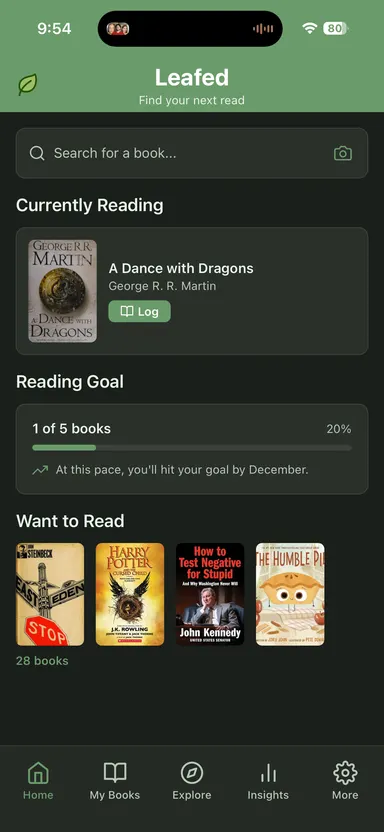
If what you want after Goodreads is a tracker rather than another network, Leafed imports the export directly: pick the CSV in the app and it maps your Exclusive Shelf statuses, custom shelves, ratings, and read dates into a library that lives on your device. No account required, no ads, no social feed — and it exports back to CSV or JSON anytime, so this isn't a one-way door. The honest tradeoff: you give up Goodreads' review ecosystem, friend activity, and community discovery. Leafed is free on iOS and Android.
StoryGraph — social, mood-driven
StoryGraph has a dedicated Goodreads import and handles the format well, including large files (imports queue and can take a while). Choose it if you want mood and pacing-based recommendations and community features — it's an account-based online service, so you're trading one cloud for another, but a genuinely different and often better one for discovery.
Hardcover — modern community catalog
Hardcover also accepts Goodreads CSVs and rebuilds your library in its community-driven catalog. Same shape of tradeoff as StoryGraph: online account, social layer, active development.
A spreadsheet — maximum custody
The CSV is already a spreadsheet; open it in Google Sheets or Excel, delete the columns you don't care about, and you have a fully-owned reading log. Pair it with our book tracking spreadsheet template for the columns and formulas worth keeping.
For a wider survey of the options and how they compare on privacy specifically, see the best Goodreads alternatives for privacy.
After importing: a two-minute verification
Wherever the CSV lands, check three things before you call the migration done:
- Count matches roughly. Your Goodreads book count and the imported library count should be within a few titles. A big gap means rows were skipped — usually edition-matching failures worth a second pass.
- Statuses landed. Spot-check that a few read, currently-reading, and to-read books ended up on the right shelves, and that a custom shelf you care about survived.
- Dates and ratings survived. Open two or three old favorites and confirm the read date and stars are yours, not blank.
Fix stragglers by hand while the import is fresh — a dozen manual corrections now beats discovering a hole in your 2018 reading three years from now.
Export even if you're staying
One last argument: the export is the only backup mechanism Goodreads gives you. Accounts get locked, libraries get mis-merged, services change owners and policies. A yearly CSV in your own backup folder costs two minutes and means your reading history — possibly the longest-running personal dataset you have — no longer depends on any one company's continued goodwill.
Related reading
- Leafed vs Goodreads
- Best Goodreads alternatives for privacy
- How to track books you've read (without losing your list)
FAQ
How do I export my library from Goodreads?
On the website: My Books → Import and Export (under Tools in the left sidebar) → Export Library, then click the "Your export" link when it appears. The mobile apps don't offer export.
How long does a Goodreads export take?
Seconds for small libraries; several minutes for thousands of books. Refresh the page until the dated download link shows, and re-trigger the export if it stalls.
Does the Goodreads export include my reviews and read dates?
Yes — ratings, reviews, read dates, shelves, and private notes are all in the CSV. Friends, review comments, and individual reread dates are not.
Where can I import a Goodreads CSV?
Leafed (private, offline-first, maps shelves/ratings/dates), StoryGraph, Hardcover, or any spreadsheet app. All read the standard export file directly.