Where good quotes go to die
Everyone has a system for saving quotes from books, and most of them end up in the same place: a camera roll full of page photos you'll never scroll back to. The usual problems:
- Photos aren't searchable. A picture of page 212 doesn't tell you which book it's from, let alone what it says.
- Kindle highlights are stuck in the Kindle. They're easy to make and hard to get out in a form you can use somewhere else.
- Notes apps lose the context. A quote without its book, author and page is a fortune cookie.
- Paper, ebook and audiobook quotes end up in three places. Nobody can find anything that way.
What works is boring: every quote gets attached to its book, with the page if you have it, in one place you can search and export.
Three ways to capture a quote
From a paper book: scan the page
Typing out a long passage is where most quote habits die. A scanner that reads the page saves you the typing. In Leafed, open the book and tap Scan Quote. Point the camera at the page, then tap the lines that make up the quote, fix any stray characters, and save. Text recognition runs on your phone, so the photo of the page isn't uploaded anywhere. If your device can't run it, you can still type the quote on the book's page.
From a Kindle: import My Clippings.txt
Kindle e-readers save your highlights and notes to a file called My Clippings.txt. Connect the Kindle to a computer with a cable, and you'll find it in the documents folder. Copy it to your phone, then in Leafed go to Settings, Backup & Import and choose the file. Leafed recognizes it as a Kindle file and:
- turns highlights into quotes and Kindle notes into notes, keeping the page number and Kindle location when the file has them;
- matches each book to one already in your library;
- lets you add books it couldn't match, with their quotes, onto an "Imported" shelf;
- skips bookmarks, which have no text.
One catch: as far as we know, highlights you make in the Kindle phone or tablet app don't land in that file, only ones made on the e-reader itself. For Kindle reading history (not highlights), see how to track Kindle books you've read.
From anywhere else: type it
Audiobooks, library ebooks, a line someone read aloud: tap Add Quote on the book, or the + on the Your Quotes screen and pick the book. Add the page number if you have one.
Keeping quotes findable
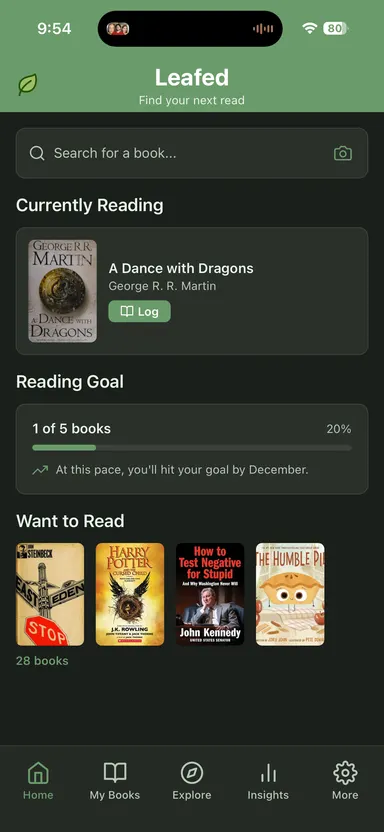
Your Quotes in Leafed gathers every quote from every book, grouped by book with the newest first. You can filter by book title or author. Each book's page also has its own quotes, next to your personal notes about the book. When you want them out of the app, export a PDF of your quotes and notes from Backup & Import, or export a single book as a PDF from its page.
How the options compare
| Option | Paper books | Kindle highlights | Best for |
|---|---|---|---|
| Leafed | Scan the page on your phone, or type it | Import My Clippings.txt, matched to your library | Readers who want quotes on the same record as their reading log |
| Photos / camera roll | Snap the page | Screenshots | Fast capture; poor at finding anything later |
| Notes app or doc | Type it | Copy and paste | Writers who want free-form commonplace books |
| Dedicated highlight services | Varies; check current features | Usually their main feature | Heavy highlighters who want resurfacing and review, often paid |
Where Leafed wins (and loses)
Wins: quotes from paper, Kindle and audio all land on the same book record as your reading log, ratings and notes. Page scanning reads the text on your phone instead of in the cloud. The Kindle import keeps page numbers and locations and can add missing books for you. No account is required, and the whole app is free.
Loses: Kindle import is a file you bring over yourself, not an automatic sync, so new highlights mean a new import. Search on Your Quotes looks at the book's title and author, not the words of the quote. There's no spaced-repetition review or daily quote email; dedicated highlight services built around that are a better fit if resurfacing is the point. And if you only ever read on one device, its own highlight view may be all you need.
A habit that sticks
- Save the quote the moment you read it: scan it or type it before you turn the page.
- Always attach the book. Add the page number when you can.
- Once a month, import your Kindle clippings.
- At the end of the year, export your quotes PDF. It makes a better year in review than any stat.
Related reading
- Best reading journal apps (2026)
- How to track Kindle books you've read
- How to track books you've read
- How to catalog your home library
FAQ
What is the best way to save quotes from books?
Attach each quote to its book and page in one app you can search and export. Scan quotes from paper books with your phone camera, import Kindle highlights from My Clippings.txt, and type the rest.
How do I export Kindle highlights?
Kindle e-readers save highlights and notes to My Clippings.txt in the documents folder. Connect the Kindle to a computer to copy the file. Leafed can import that file and match the highlights to books in your library.
Can I scan a quote from a paper book?
Yes. In Leafed, tap Scan Quote on the book, photograph the page, and tap the lines you want. Text recognition runs on your phone, so the page photo isn't uploaded.
Does Leafed sync Kindle highlights automatically?
No. You import the My Clippings.txt file yourself, and a new import brings in newer highlights. Highlights made in the Kindle phone app generally aren't in that file.
Can I export my quotes?
Yes. Leafed exports a PDF of your quotes and notes, and any single book can be exported as a PDF from its page.